Using DControl (Defender Control)
Required Step
You MUST disable Windows Defender before using our software. Defender will block the loader and prevent injection.
What is Defender Control?
Defender Control is a portable tool that completely disables Microsoft Defender in Windows. Our software performs tasks that antivirus programs flag as suspicious, so Defender must be disabled to avoid conflicts.
Quick Setup
-
Download: Defender Control
- Password:
sordum
- Password:
-
Extract and Run: Unzip and run
dControl.exe -
Add to Exclusions:
- Click menu → "Add it to the exclusion list"
- This prevents false alerts and creates desktop shortcut
- Path:
C:\Program Files (x86)\DefenderControl\dControl.exe
-
Disable Defender: Click "Disable Windows Defender"
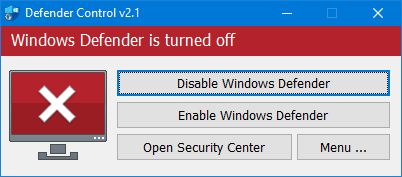
- Button should turn RED when disabled
- If prompted, disable anti-tamper protection
Verification
The button should be RED and say "Defender is turned off" when properly disabled.
Additional Steps
Also disable these Windows features:
- Windows SmartScreen
- Windows Firewall (if issues persist)
- UAC (User Account Control) - Optional but recommended
Remove third-party antivirus:
- Uninstall Kaspersky, Avast, Norton, McAfee, etc.
- These will also block the loader
Troubleshooting
Defender Keeps Re-enabling
- Disable anti-tamper protection when prompted
- Run DControl as Administrator
- Restart PC after disabling
Can't Download DControl
- Windows may block the download
- Click "Keep" or "Download anyway" in browser
- Temporarily disable SmartScreen
Still Getting Blocked
- Ensure DControl button is RED
- Check no other antivirus is running
- Add loader folder to exclusions manually
Official Resources
- Official Guide
- Support Tickets