Rob Run Serenity External Cheat
If you'd like to purchase it, you can do so from this link: Buy Now.
If you are using external spoofer. Always run the cheat first and then the spoofer. If you run the spoofer first and then the cheat, you will get banned.
External products are better for undetection
Product does not have spoofer. This means if you got banned you will get hwid banned.
If you want to purchase spoofer, you can do so from this link: Buy Now.
Installation Requirements
System Requirements
- CPU: AES instruction set support
- BIOS: SVM / VT-X enabled
- BIOS: Secure Boot disabled
- Hyper-V: enabled (both AMD and INTEL)
- Firmware: UEFI mode
- Disk format: GPT
- RAM: 16GB
- CPU Compatibility: INTEL + AMD
- OS: Windows 10-11 (versions 21H2-25H2)
Required Files
Download all required files before starting:
- Disable Windows Defender / Disable Anti-Cheat / Disable Antivirus Software
- DOWNLOAD LOADER
- Visual C++ Runtimes
- DirectX End-User Runtime
Display Software Setup
Rob Run supports only Medal and Discord overlays. Use one of them. Neither supports fullscreen, so set the game to Windowed or Borderless mode.
Medal Overlay
Medal does not support fullscreen mode: Download Medal
- Users from Russia will need a VPN
- To use it, you need to download the overlay and register
Discord Overlay
Discord does not support fullscreen mode:
To use it:
- Go to Settings → Game Overlay → Enable the overlay
- Disable "Legacy Overlay"
- Enable "Hardware Acceleration" (Settings → Appearance → Advanced at the very bottom)
If the message "No suitable overlay" appears in the current activity section, turn the overlay off and on again.
Pre-Launch Checklist
- Disable antivirus
- Launch loader
- Insert key
- Press inject
- Wait for loader to close automatically
- Start game
- Access menu with "Insert" key
Troubleshooting Guide
Loader Not Injecting – Stuck on Loading Screen
Fix: Place the loader into a new empty folder and run it as administrator
If your loader gets stuck on the loading screen, follow these steps:
- Create a new folder on your Desktop
Example:C:\Users\YourName\Desktop\Loader - Move the newly downloaded loader into this folder
- Only place the loader file there, no other files.
- Run the loader as Administrator
- Right-click the loader → Run as administrator
- Launch the loader
- It should now start properly without getting stuck.
Overlay Issues
"No suitable overlay" / menu doesn't appear
- Make sure Medal or Discord is running and its overlay is enabled
- Discord: turn the overlay off and on again, and check that "Legacy Overlay" is disabled
- Set the game to Windowed or Borderless mode
Display Issues
No Menu or Immediate Loader Closure
- Install Visual C++ Redistributable: VC Redist x64
Bind Issues
- Solution 1: Reinject
- Solution 2: Run overlay as administrator
Technical Errors
Failed to call EntryPoint
- Check the basics first (antivirus off, Visual C++ and DirectX installed)
- Move the loader to the C: drive (for example
C:\Loader). On the Desktop it can sync with cloud storage / OneDrive and break - Run Discord, Steam and Xbox as administrator
Error 0x296
- Reinject required
Unknown Network Error
- Check internet connection
- Disable VPN if active
Memory Allocation Errors
- Reboot PC
- Try different PC (for internet cafes)
- Clean autorun programs
Dependency Loading Errors
- Disable all protection
- Remove anti-readers and antiviruses
- Clean autorun programs
Anticheat Conflicts
- Uninstall Vanguard/Faceit
AES Instruction Set Error
- Hardware limitation, requires CPU upgrade
Virtualization Errors
VMX/SVM Support
HWID Issues Check system integrity:
wmic diskdrive get Caption, SerialNumber
wmic baseboard get SerialNumber
If commands fail, reinstall Windows
Virtual/RAID Disk Error
- Disable spoofer, or
- Disable RAID in BIOS
- Reinstall Windows
VMX is Not Supported
Fix:
- Run CMD as Administrator.
- Enter the following command:
bcdedit /set hypervisorlaunchtype off
- Reboot your PC.
- Try running the loader again.
Error: Failed to Map Memory(0)
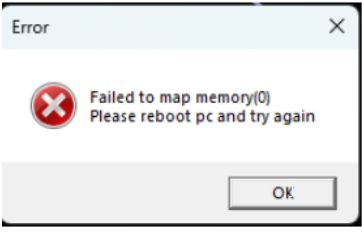
If one method does not work, try the other.
Option 1 (Recommended First):
- Disable all auto-start programs in Task Manager.
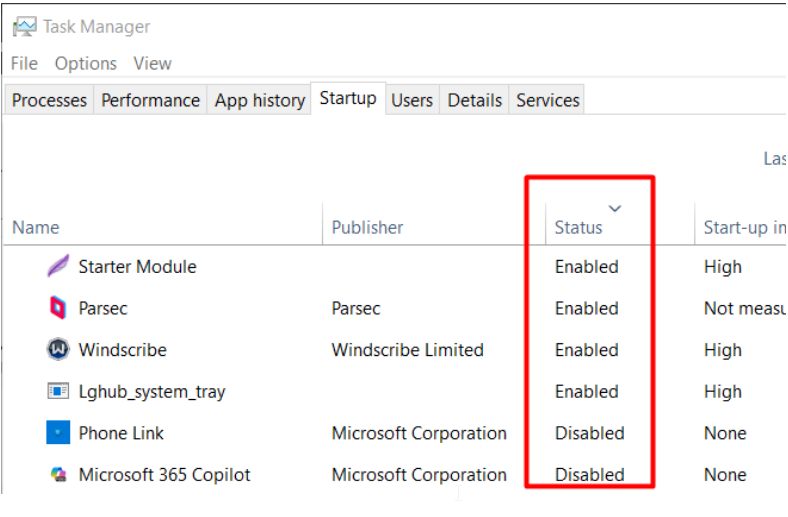
- Restart your PC and try running the loader again.
Option 2 (If Option 1 Fails):
- Download Autoruns from:
learn.microsoft.com/en-us/sysinternals/downloads/autoruns - Run Autoruns and disable all unnecessary startup items.
- Restart your PC and try running the loader again.
Error 0x298(0)
Use VPN